Feishu / Lark
Follow the real setup order: create the bot in Feishu or Lark first, collect its credentials and permissions, install the Baize connector, then finish configuration in Web Console.
Estimated setup time: 10–15 minutes.
Before you start
- A Feishu or Lark account with developer-console access.
- A running Baize instance.
- An HTTPS domain reachable by the platform if you choose Webhook mode.
Step 1: Open the developer platform
- Feishu (mainland China): open.feishu.cn
- Lark (international): open.larksuite.com
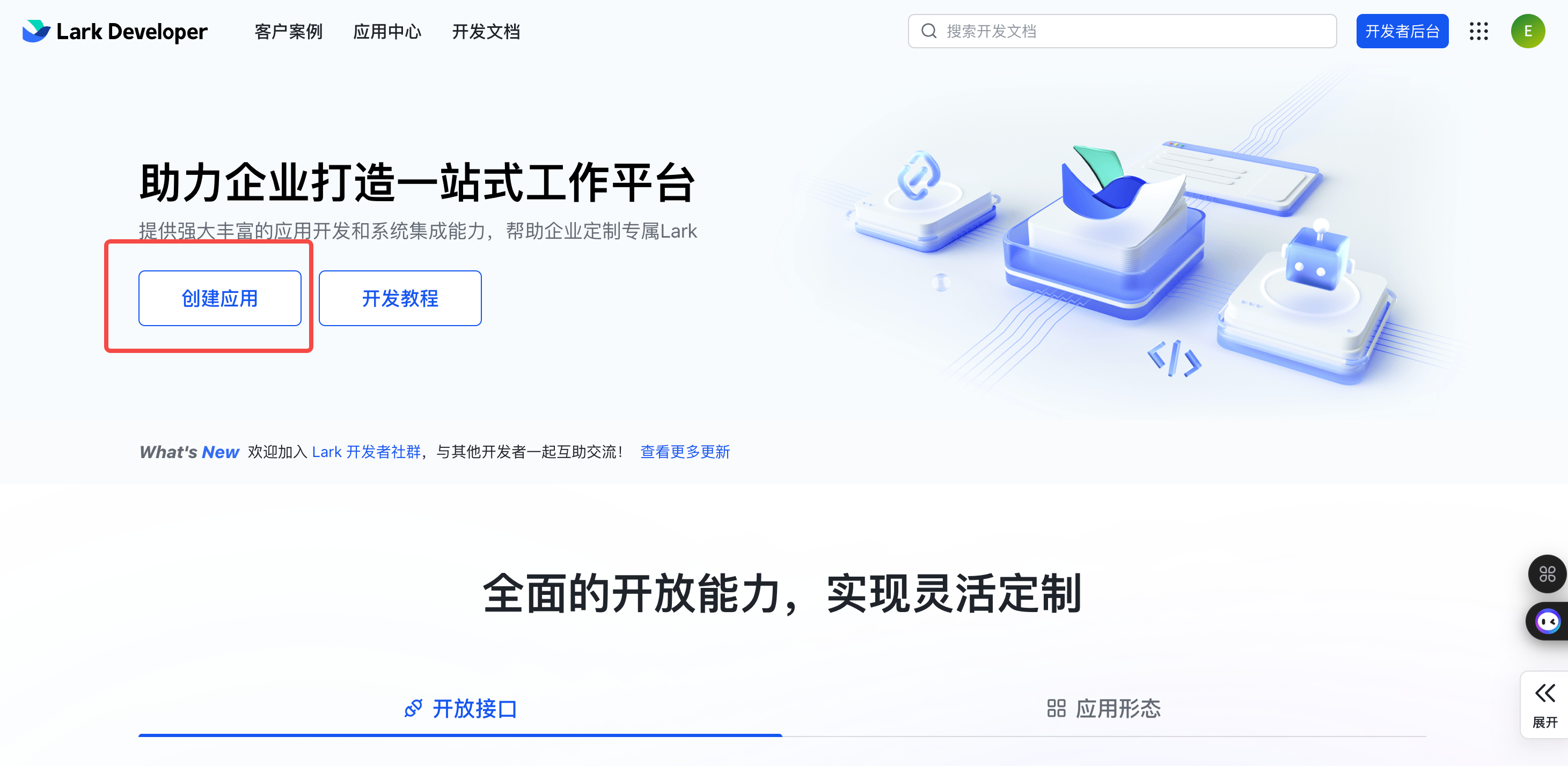
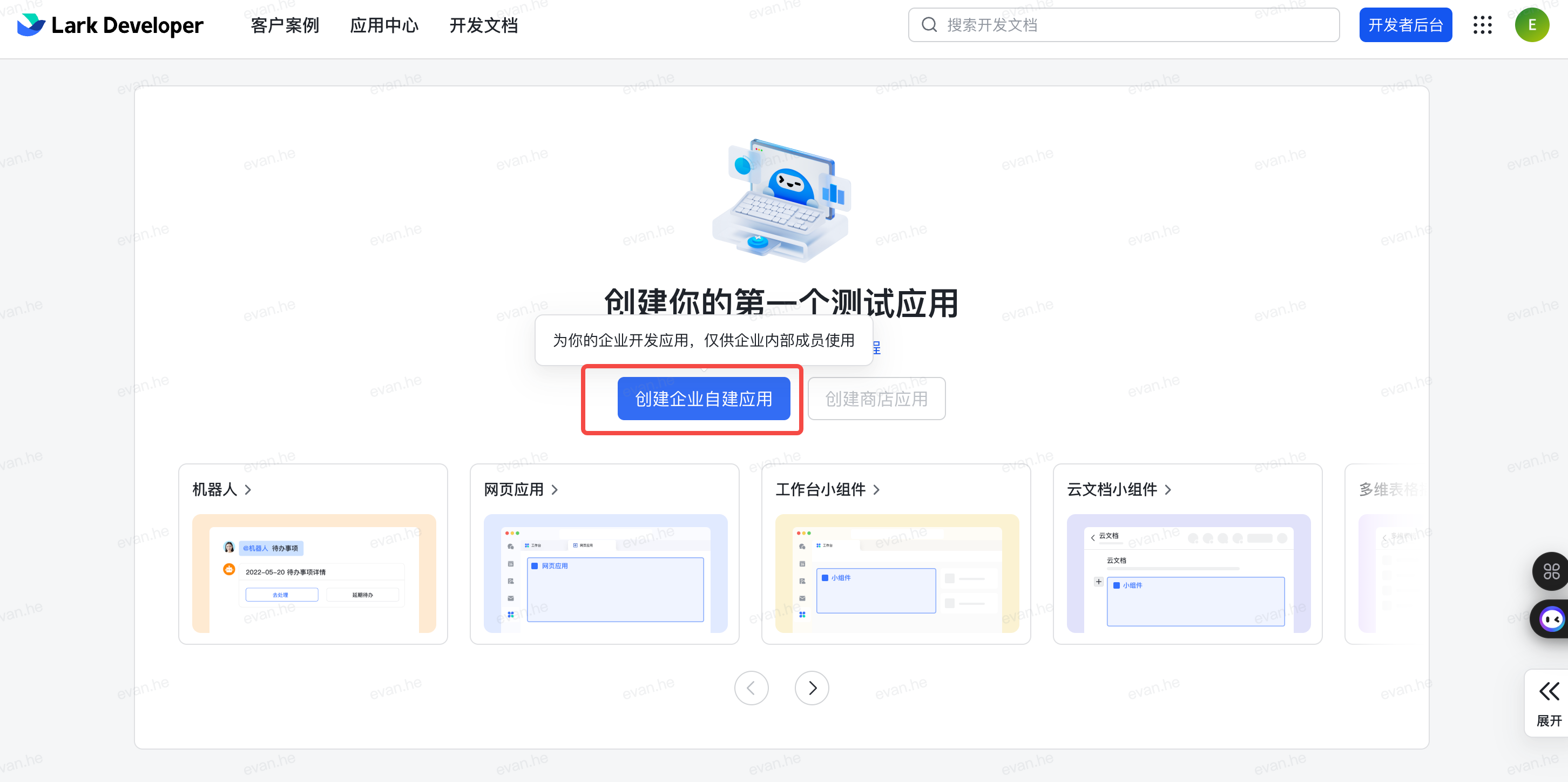
Step 2: Create an enterprise self-built app
- Sign in and open the application list.
- Select Create enterprise self-built app.
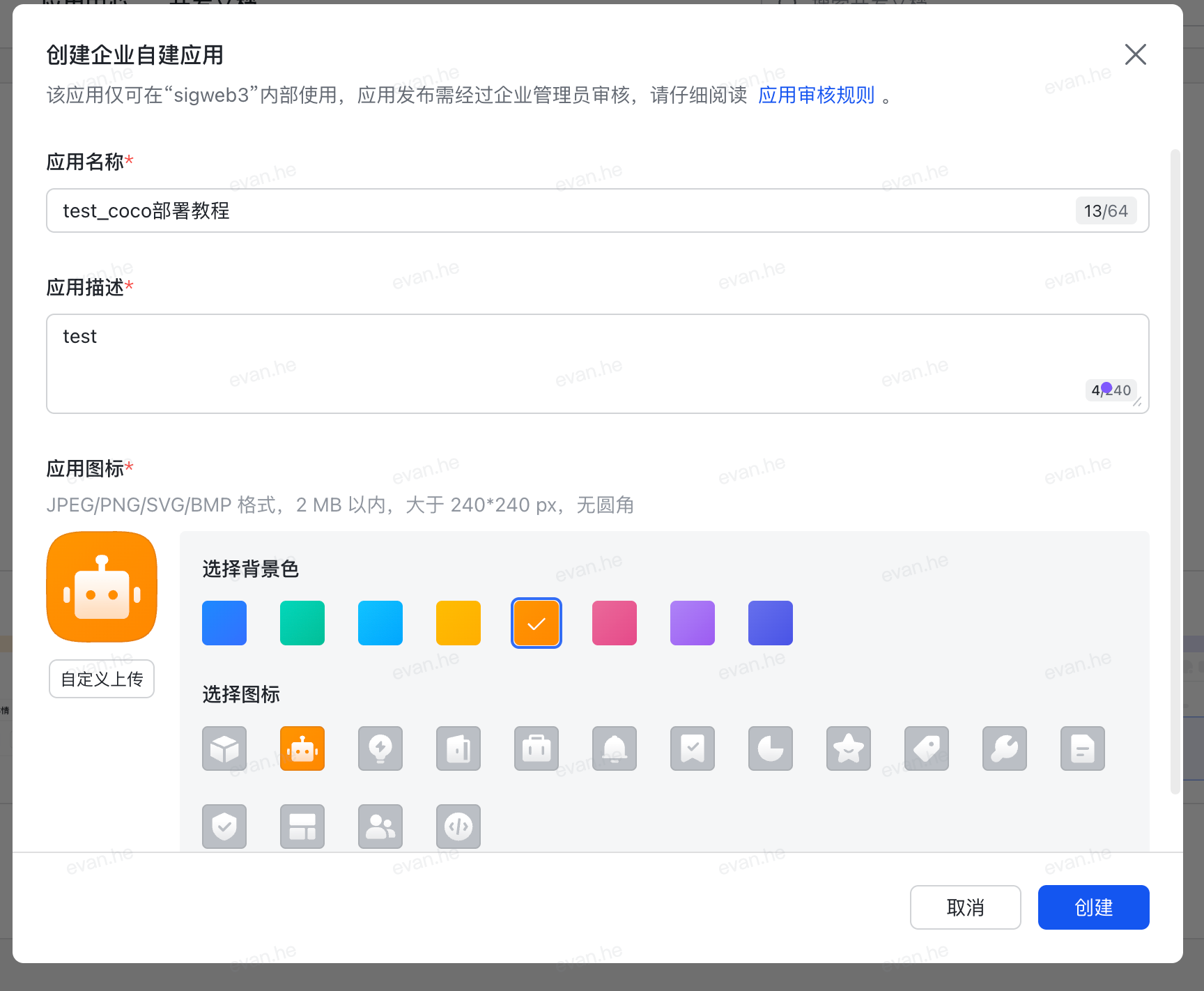
- Enter an app name and description, such as
Baize. - Create the app and open its details.
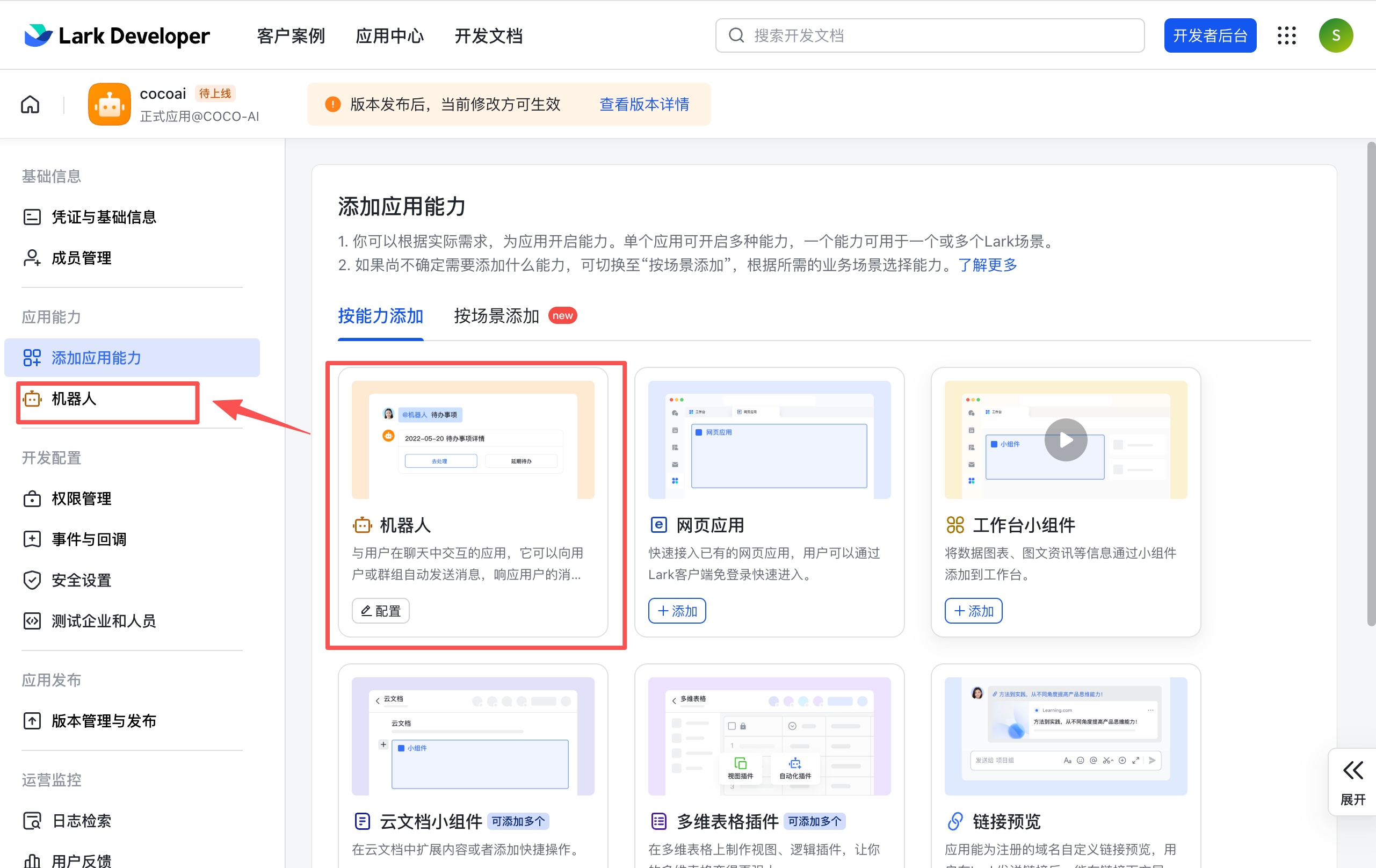
Step 3: Add the Bot capability
In the app details, open App capabilities and add Bot. The app cannot receive or send messages until the Bot capability is enabled.
Step 4: Get the App ID and App Secret
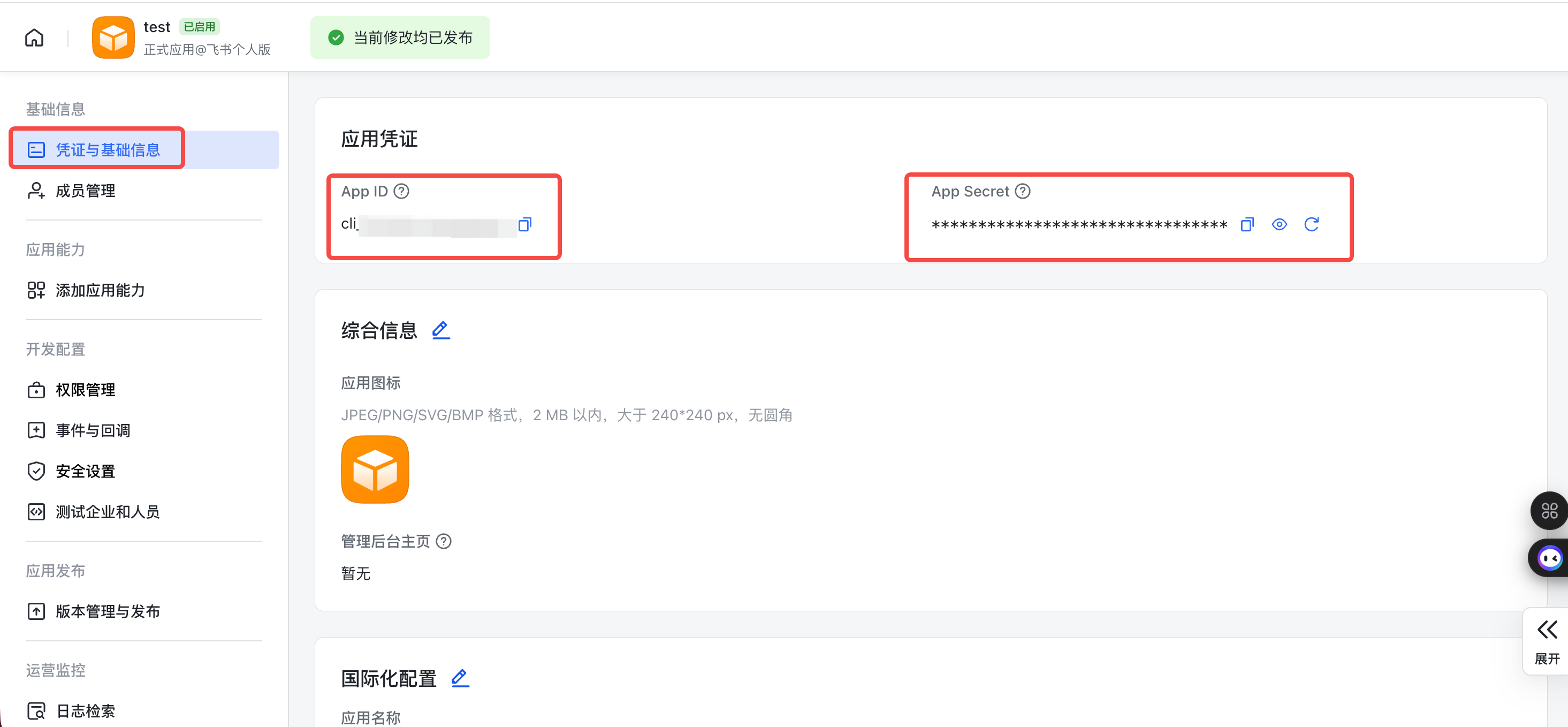
Open Credentials & Basic Info and copy:
- App ID — the application identifier.
- App Secret — the application secret; keep it in a trusted configuration environment.
Never commit the App Secret to a repository or expose it in public screenshots.
Step 5: Configure message permissions
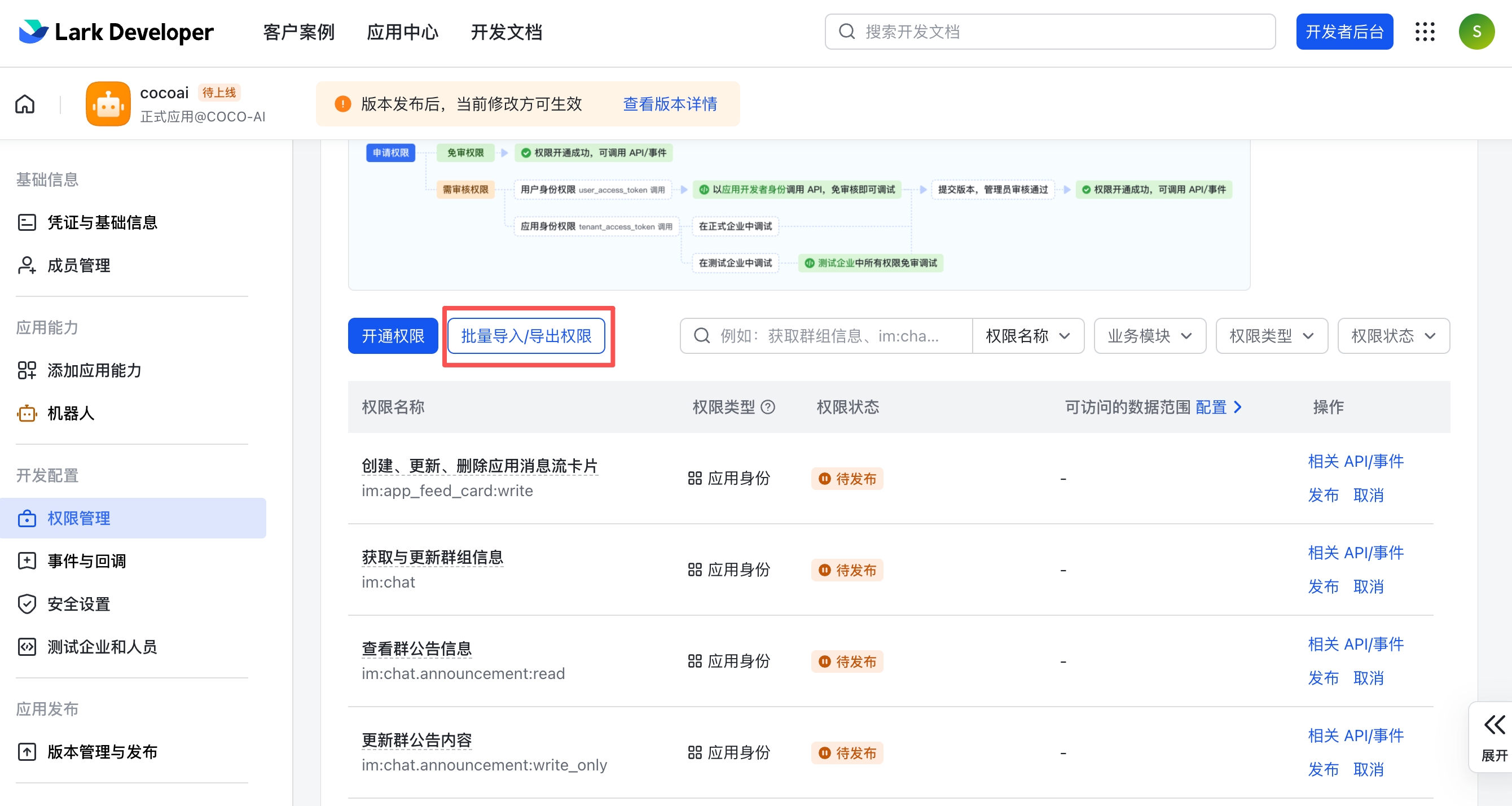
Open Permission management and add the message and basic user-information scopes. At minimum:
im:message— send messagesim:message:send_as_bot— send as the Botim:message.p2p_msg:readonly— read direct messagesim:message.group_at_msg:readonly— read group @ mentionsim:chat.members:bot_access— access groups containing the Botim:resource— upload and download files and imagescontact:user.base:readonly— read basic user information
If the developer platform supports JSON import, use its batch-import flow and review the resulting scopes.
Step 6: Get the Verification Token and Encrypt Key
For Webhook mode:
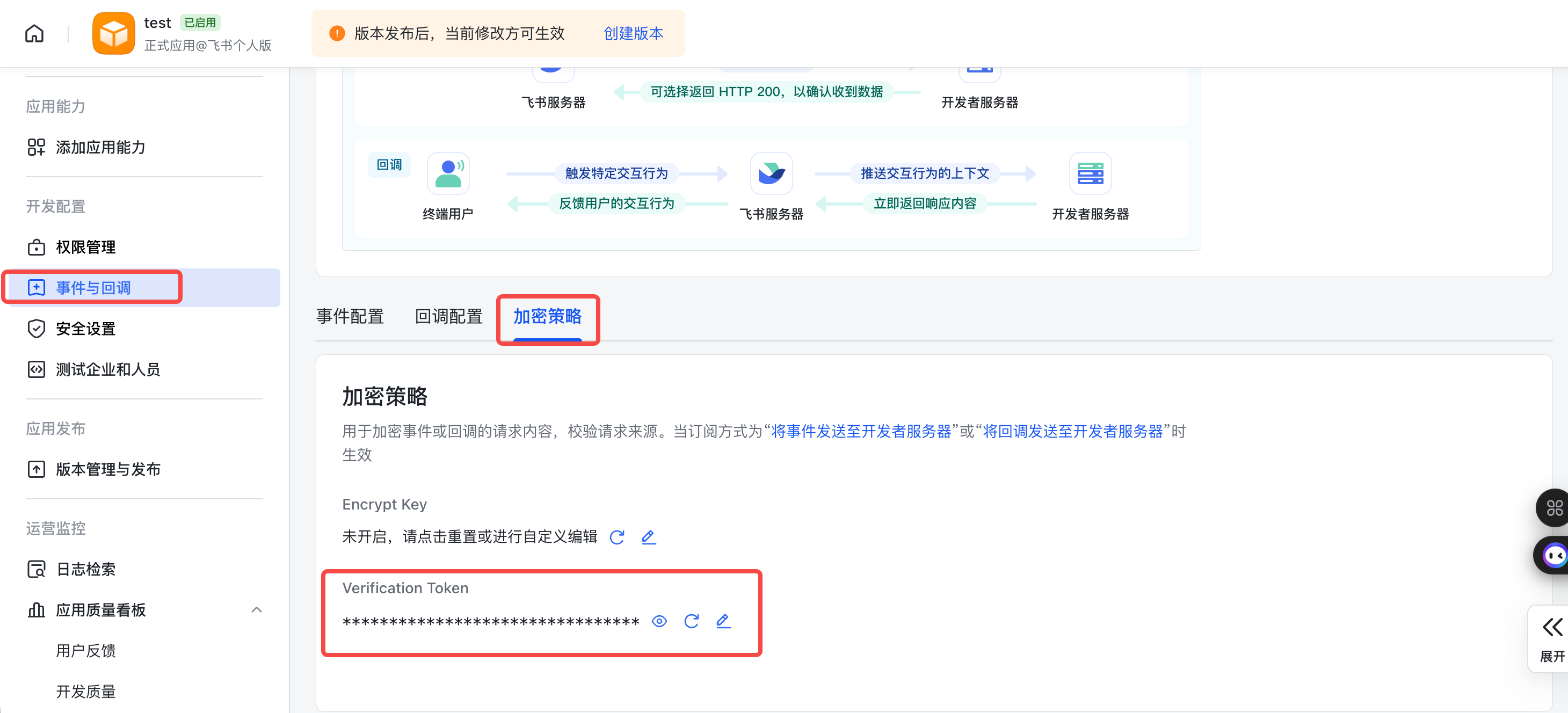
- Open Events & Callbacks.
- Select the Encryption strategy tab.
- Copy the Verification Token.
- We recommend copying the Encrypt Key as well.
WebSocket mode normally does not require a public callback URL, but keeping these values available makes a later Webhook switch straightforward.
Step 7: Install the Baize connector
Only after the platform app and credentials are ready, install the connector:
baize add feishuFor international Lark:
baize add larkThe connector now appears in Baize's channel catalogue, but it is not configured yet.
Alternatively, skip the CLI: click Install in Web Console → Channels and integrations — same result as
baize add. Web installation takes 1–5 minutes (package download + native module compilation); do not refresh or close the page while waiting for the completion notice.
Step 8: Configure the channel in Web Console
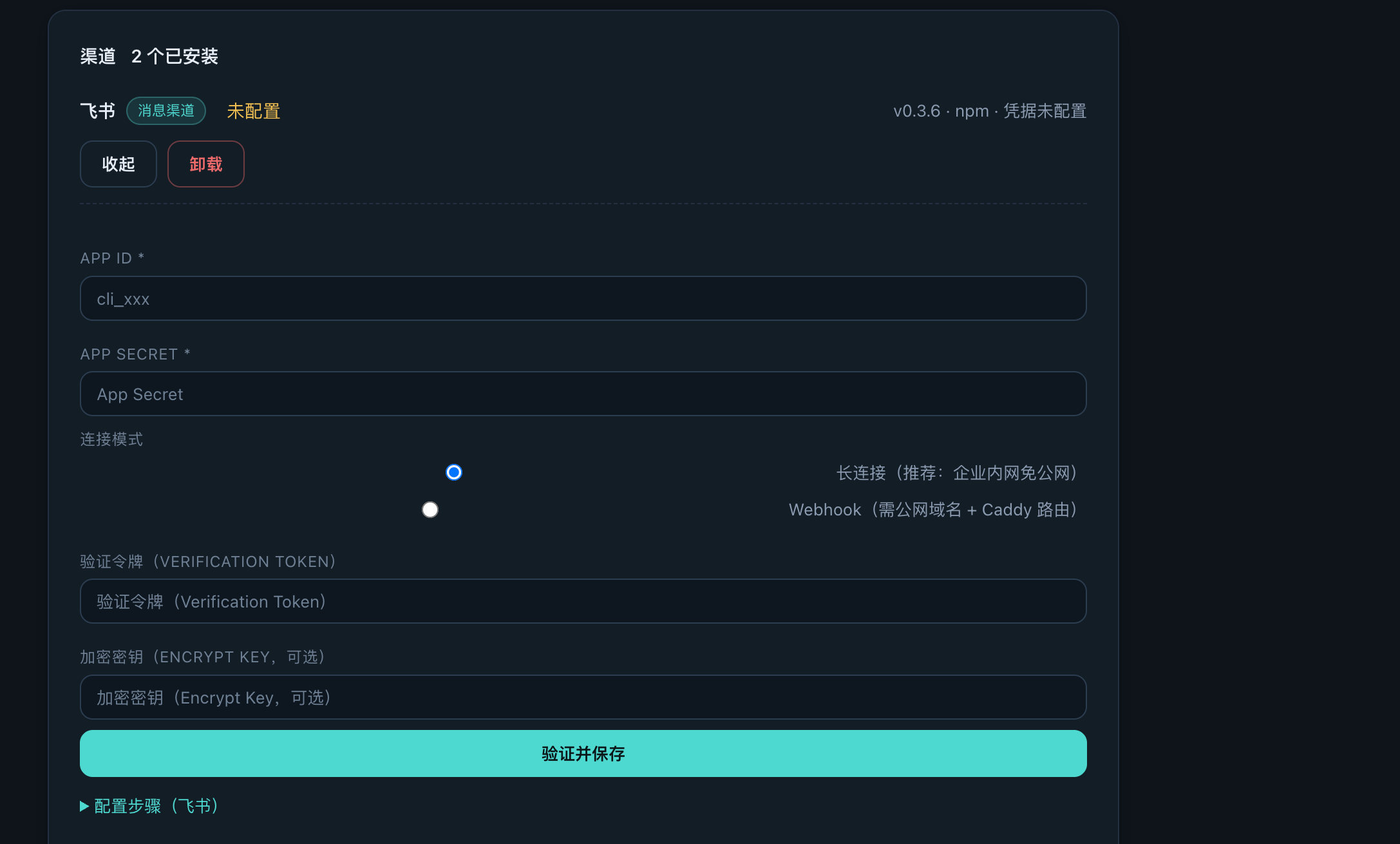
Open Web Console → Channels and integrations and select the installed Feishu / Lark connector. Enter:
- App ID
- App Secret
- Connection mode: WebSocket or Webhook
- Verification Token (Webhook mode)
- Encrypt Key (optional, Webhook mode)
WebSocket is recommended for a first setup because it does not expose a public callback endpoint. Save the form, confirm the status is Configured, then start the connector and wait for Running.
Step 9: Configure Webhook events (Webhook mode only)
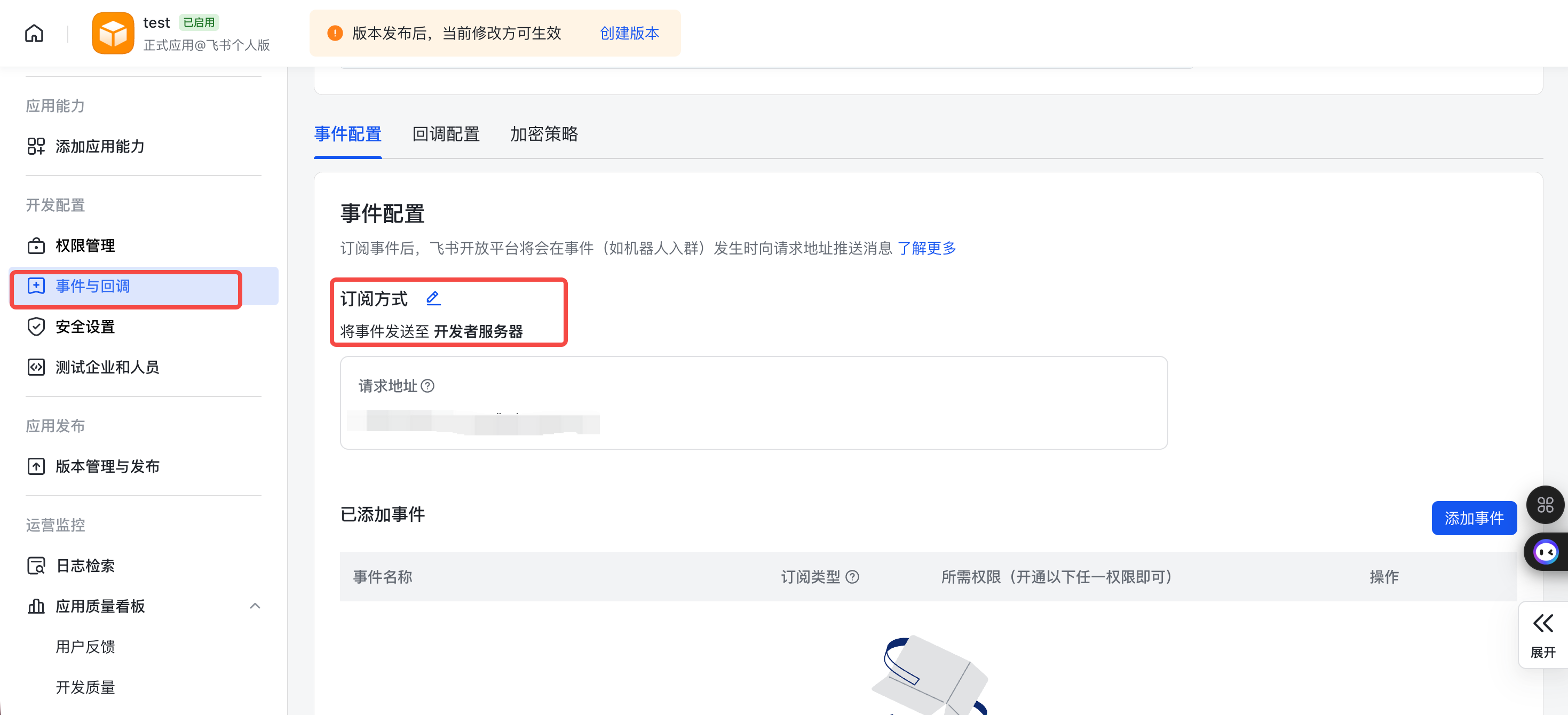
If you selected Webhook, return to the Feishu / Lark developer platform:
- Open Events & Callbacks.
- Select Send events to developer server.
- Paste the callback URL shown by Web Console.
- Verify the Verification Token and Encrypt Key.
- Subscribe to
im.message.receive_v1and other required message events, then save.
Step 10: Publish the app and start chatting
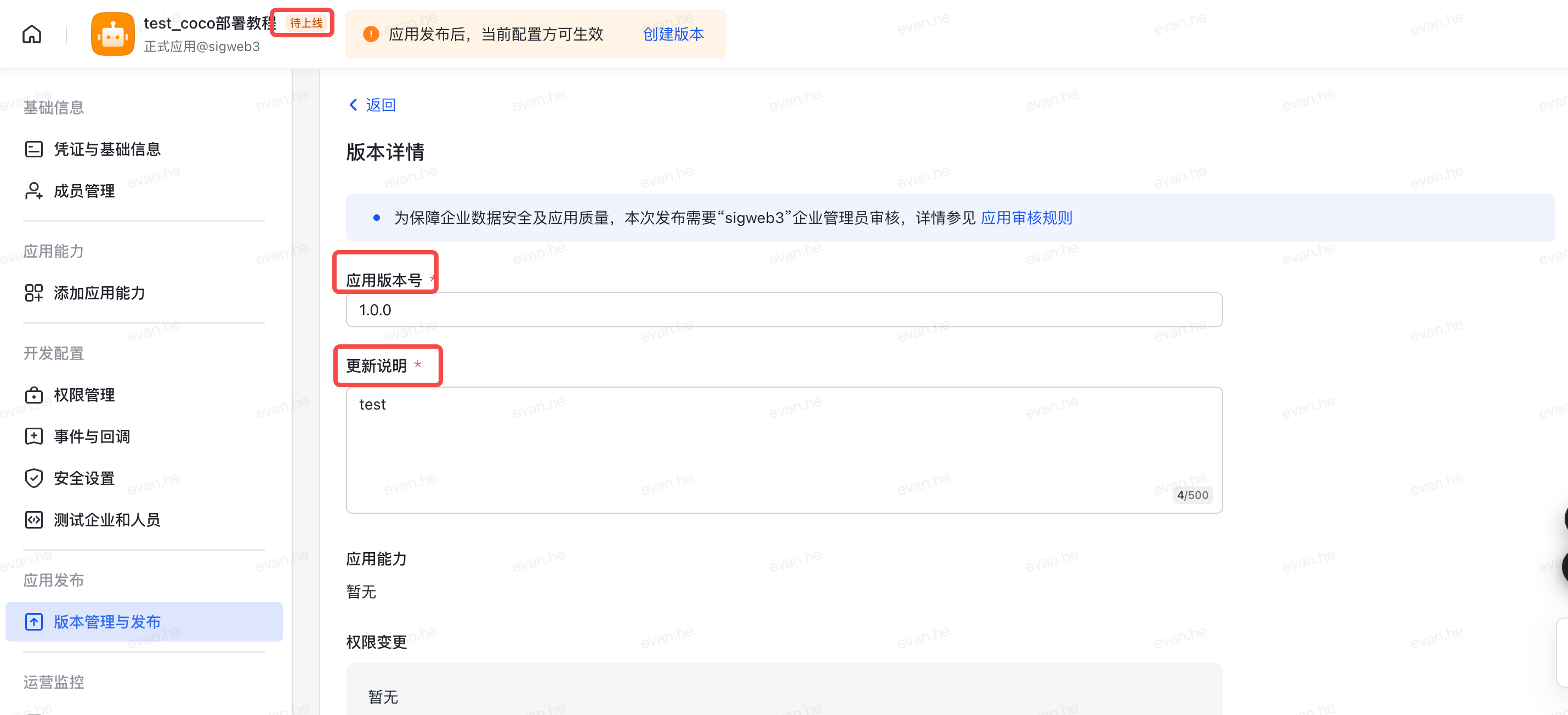
- Open Version management & release.
- Create a version with a version number and release notes.
- Save and release it; complete administrator approval if required.
- Search for the Bot in Feishu / Lark and send a direct message.
- In a group, add the Bot and mention it with
@.
A reply confirms that the platform app, connector, communication bus and Agent runtime are connected.
Feishu and Lark differences
The same Baize connector supports both platforms. The main differences are the developer-console URL and platform API domain; the connector selects the correct API endpoint, and the permission names remain the same.
Troubleshooting
- Credential verification fails: confirm the App ID, App Secret and selected platform.
- Webhook validation fails: verify HTTPS, callback reachability, Verification Token and Encrypt Key.
- Group messages get no reply: add the Bot to the group and mention it.
- The app receives no messages: confirm permissions, event subscriptions, app release and administrator approval.
- The connector is not running: check its status and logs in Web Console.